
Add Paid Product Options to Squarespace Products (Engraving, Gift Wrap, Custom Text)
Squarespace can’t charge extra for an option like engraving or gift wrap. OptionKit adds product options with prices to 7.1 product pages.
Get the code
 Book a Free Consultation
Use these tweaks to improve your site!
Need something custom? I also build custom code and automations.See what I can build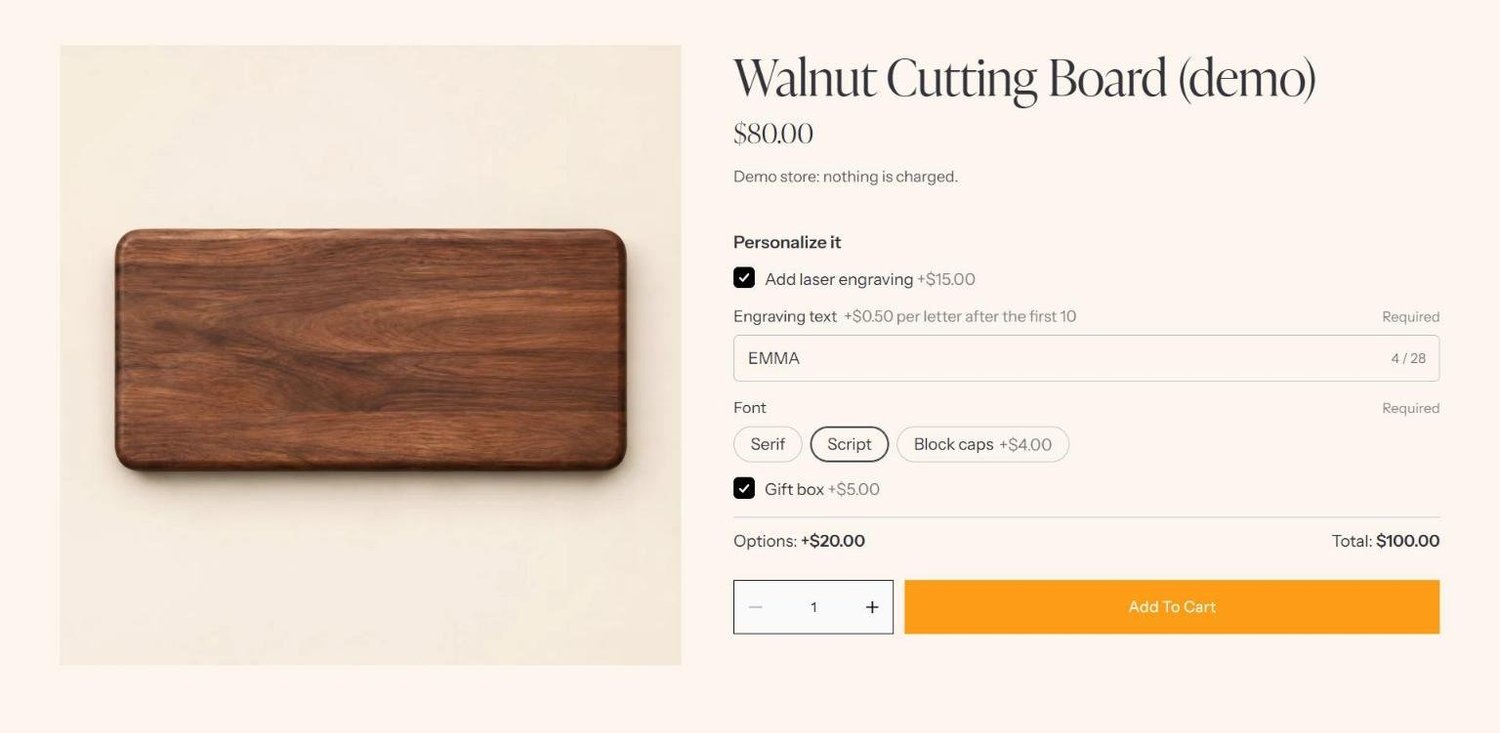
Squarespace can’t charge extra for an option like engraving or gift wrap. OptionKit adds product options with prices to 7.1 product pages.
Get the code
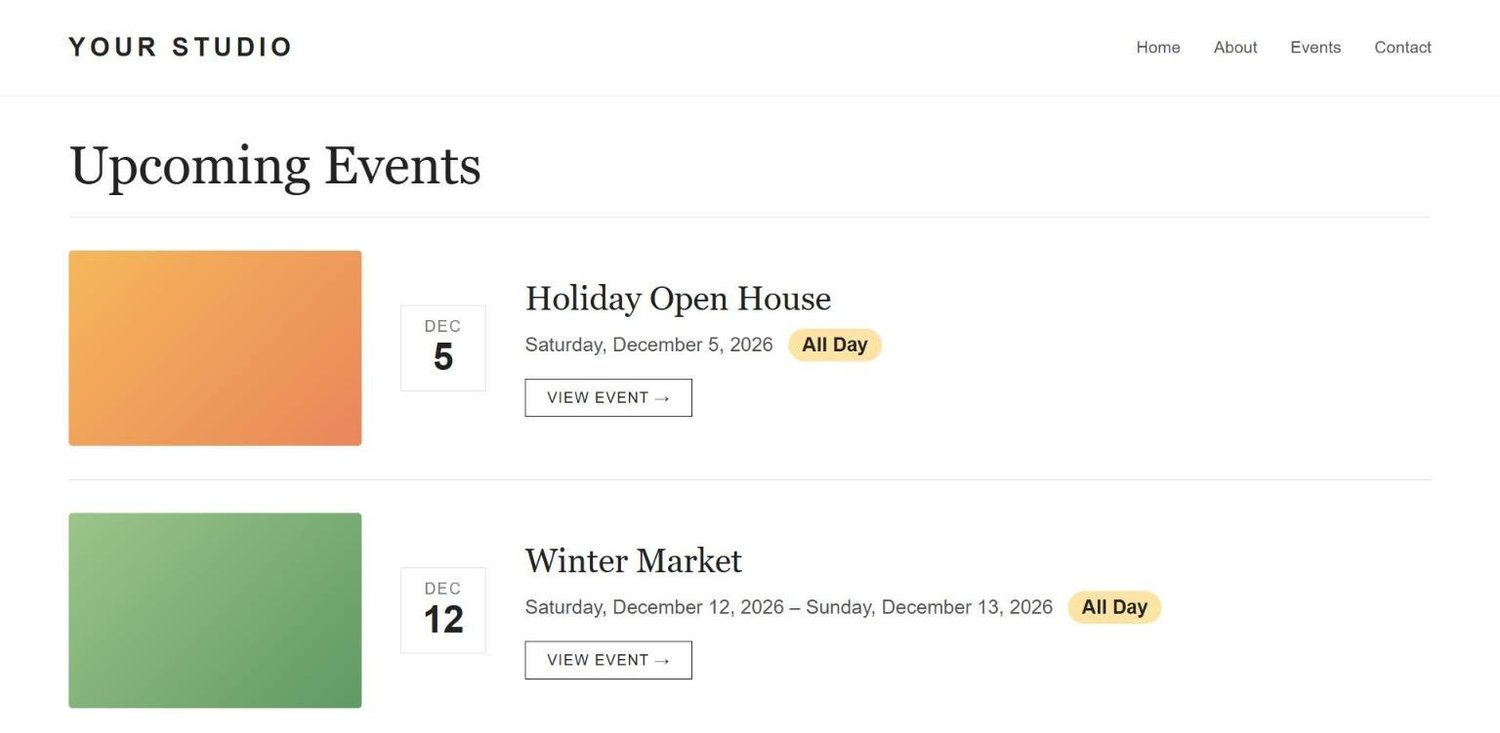
Squarespace doesn’t have an “All Day” option for events. Every event needs a start and end time, so if you have something like a holiday closure or an all-day festival, it ends up showing a time like 9:00 AM – 5:00 PM, which isn’t quite right.
Get the code
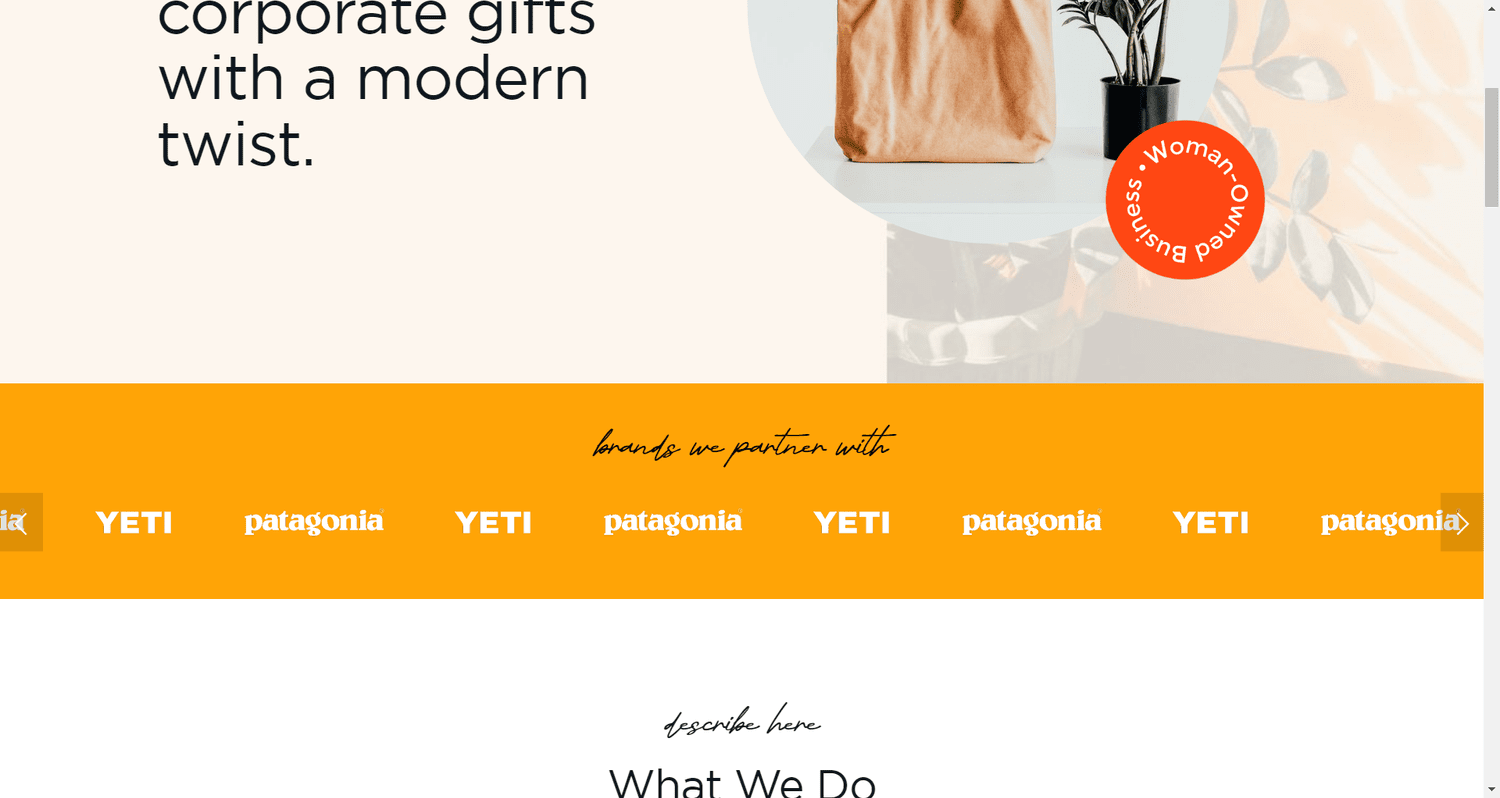
Do you have a bunch of logos on your homepage, making it look a bit too crowded and busy? A convenient way to display them would be by using a scrolling logo banner. There isn’t a native way on Squarespace to create a logo slider on your website. However, there’s a workaround using Classic sections if you’re on version 7.1.
Get the code

If you’re starting to build your website on Squarespace 7.1, it might be challenging to find where to change the font of your Site Title.
Get the code
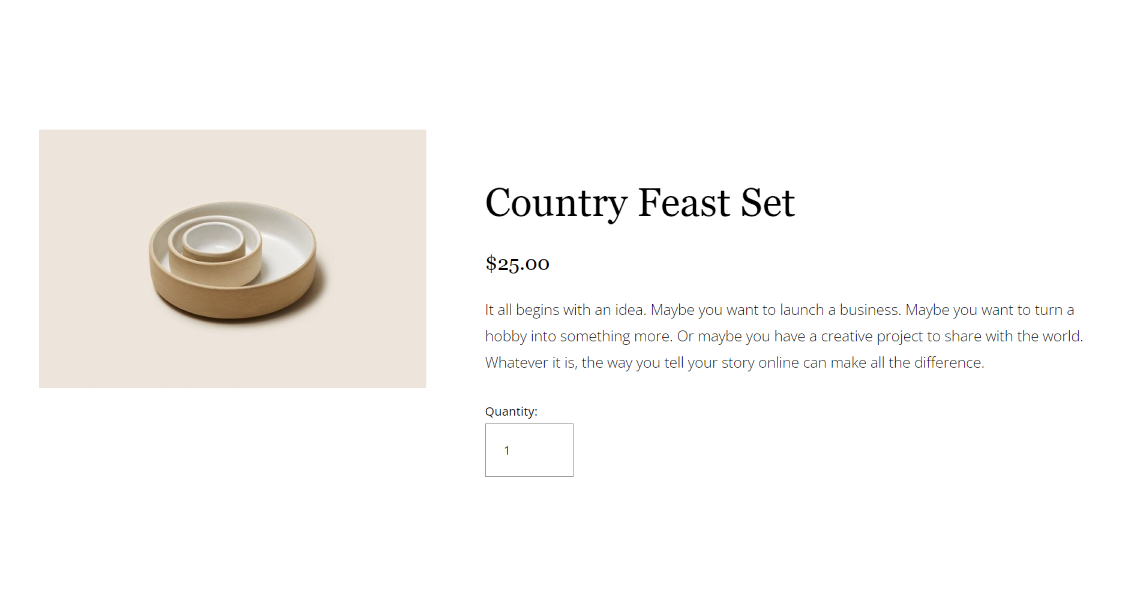
On a Squarespace product detail page, there isn’t a native option to show the full product image. You can only change the aspect ratio, which may lead to some of the product images being cut off. In a summary block, you can set to ‘Auto’ to show the full image, but there isn’t an option to show the entire image on commerce pages yet. As a workaround, you can use the code below.
Get the code

If you add a Social Links block on Squarespace, you’re only able to add links universally. This means, if you have an “Our Teams” page for example, you can’t show different social links for each team member. You might want to use them to show the icons for LinkedIn, Twitter, Facebook, Instagram, Skype, etc.
Get the code
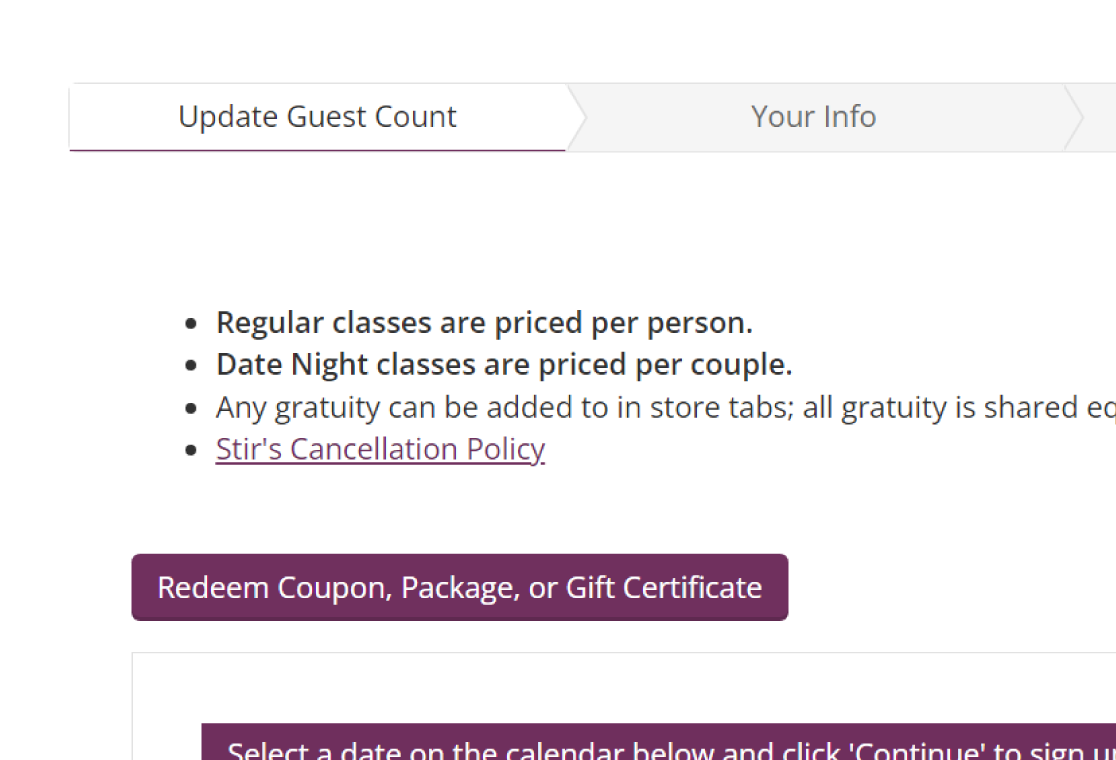
With the new update, Squarespace Scheduling (formerly Acuity), removed the ability to change the wording in the appointment steps at the top of the scheduler. This is a drag because the word “appointments” might not work for the services that you’re offering.
Get the code
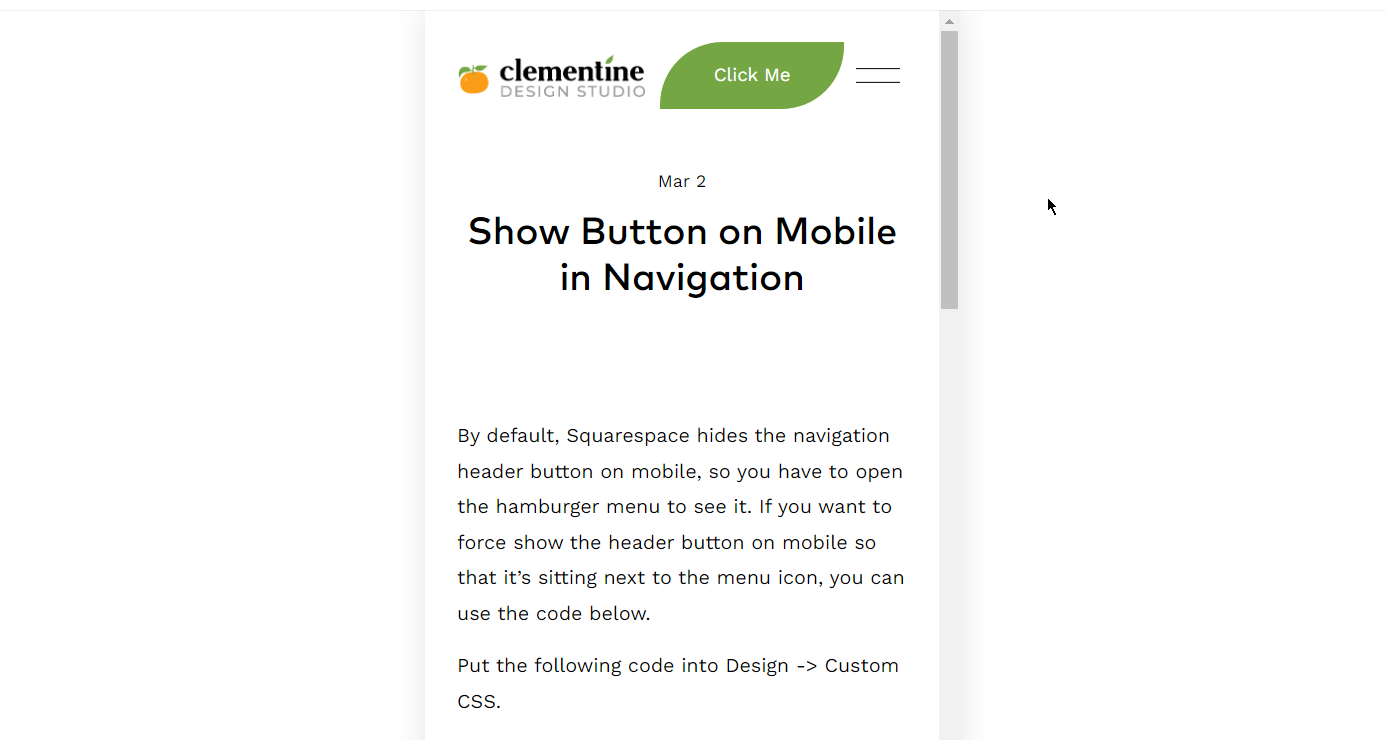
By default, Squarespace hides the navigation header button on mobile, so you have to open the hamburger menu to see it. If you want to force show the header button on mobile so that it’s sitting next to the menu icon, you can use the code below.
Get the code
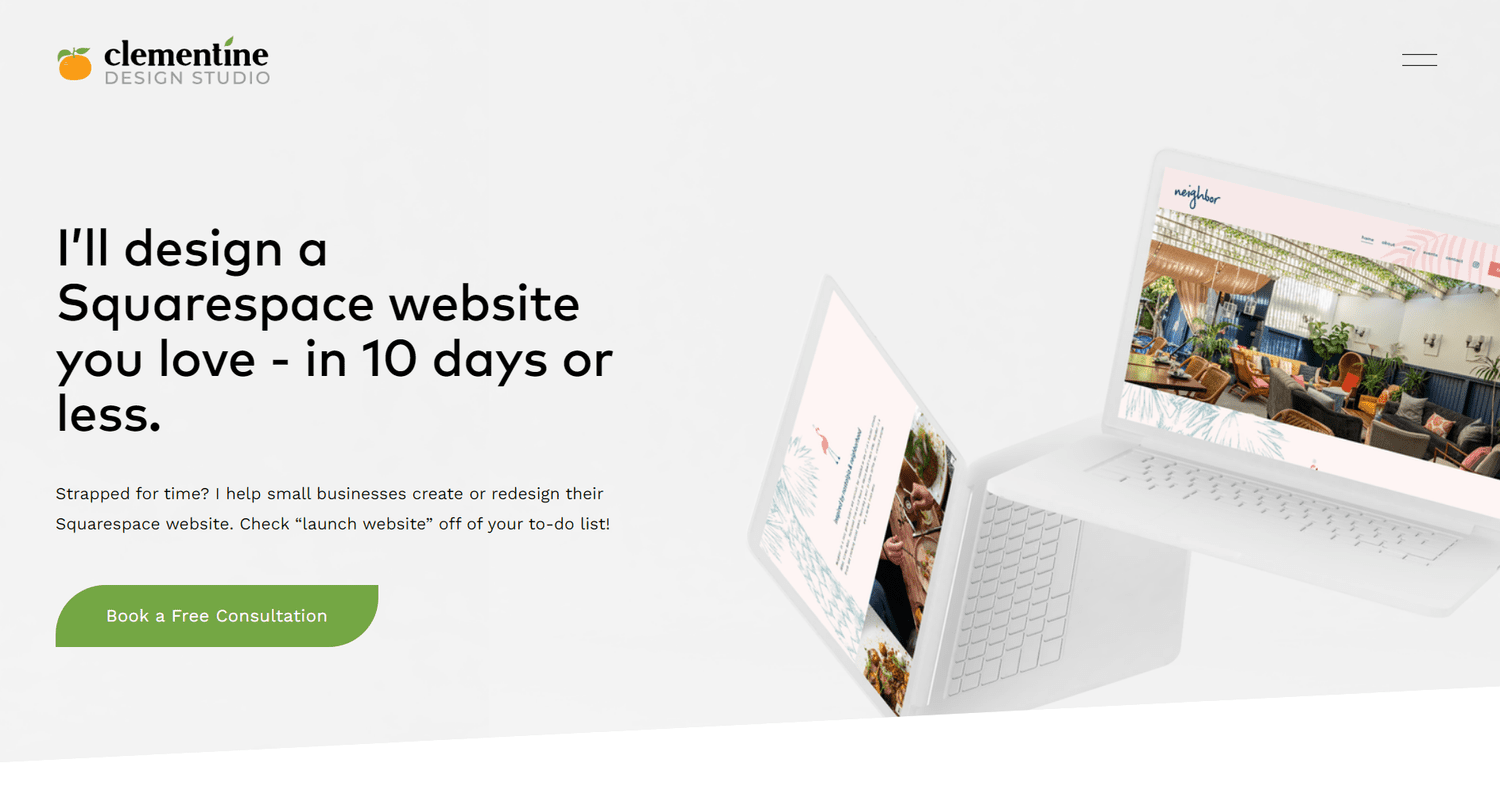
To go for a cleaner, more minimalistic look, you might want to make the mobile navigation display on all screen sizes. To force the mobile menu on desktop, you can use the code below.
Get the code
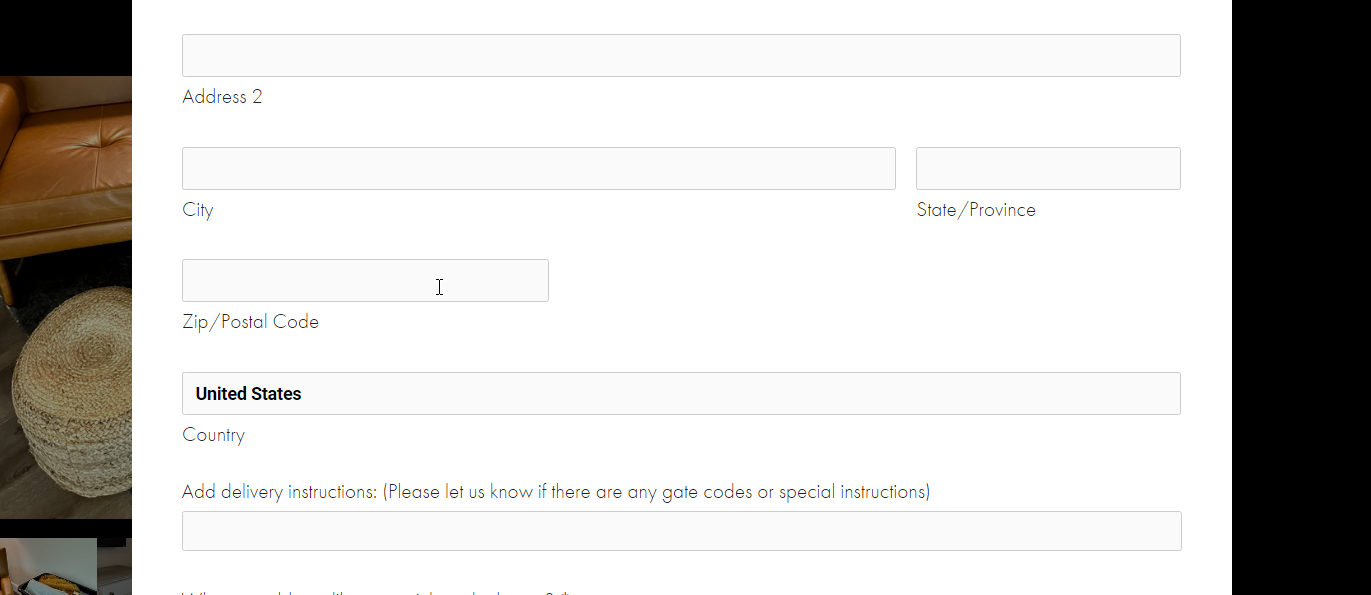
If you hide the Country form field on a Squarespace form block using CSS, you’ll get an error when you try to submit it because the country is a required field. What if you know that your clients will likely always be in the same country? Unfortunately, you can’t make the country field optional, but you can use the code below to auto-populate this field to fill in your desired country.
Get the code
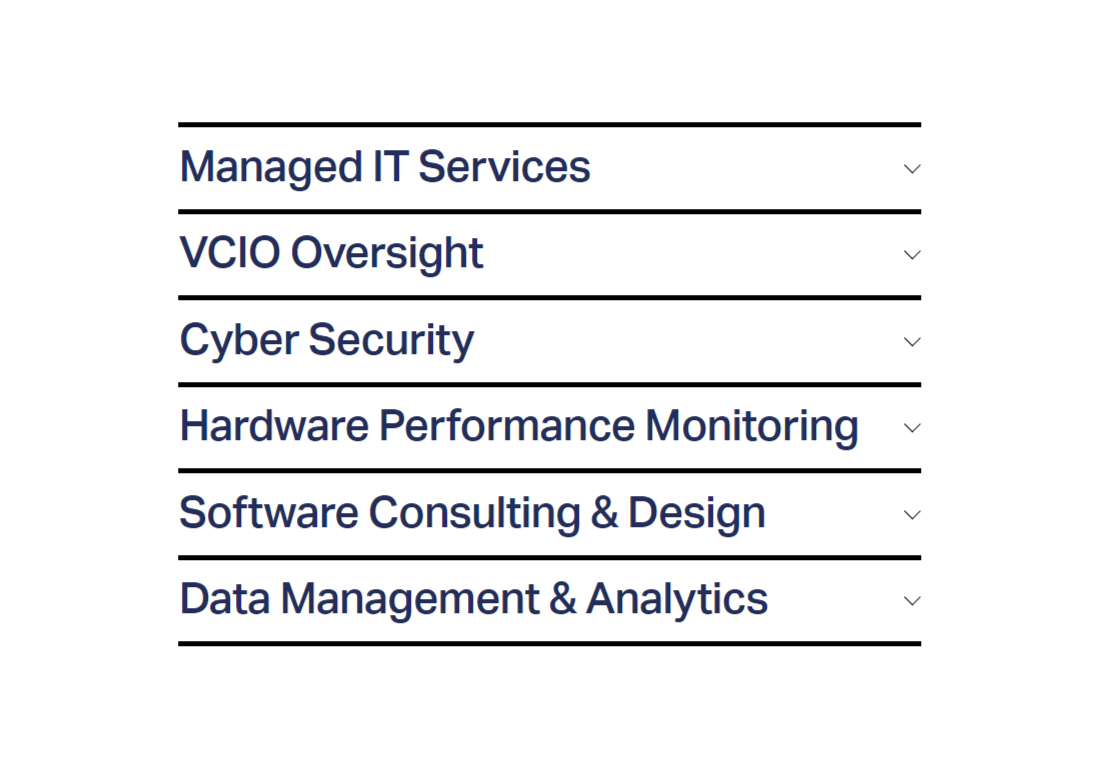
Squarespace’s new Accordion Blocks have been a godsend. But the dividers are a different story! They seem to change heights depending on what screen size you’re on, and they can look very uneven. The only real solution I’ve been able to find is to disable the dividers in the accordion settings and then adding borders manually using code. This method makes sure that all the dividers are even height!
Get the code