

"Can customers add engraving for $15?"
I can't tell you how many times a client has asked me some version of this. Engraving on a cutting board. Gift wrap on a candle. A name on a mug.
It sounds like the simplest request in the world. And for years, my honest answer was: "Well... kind of. Not really."
Here's a common one: a wine shop wants people to add a gift box and a short note to a bottle, for a few dollars more. With Squarespace's built-in tools, that turns into a tangle of variants called things like "Bottle + gift box" and "Bottle + gift box + note." It works. It also makes the product page look like a tax form.
Squarespace is great at selling a product. It gets tricky the moment a customer wants to change that product and pay a little more for it.
So let's break it down. Squarespace has three built-in ways to add product options. Each one does one job well. I'll walk you through all three, show you exactly where each one stops, and then tell you what I use now when a client needs options with a price.
Full disclosure: I built the plugin I mention at the end, OptionKit. I built it because I kept running into this exact wall. I'll be fair to the built-in tools first, because sometimes they're all you need.
1. Variants
A variant is a version of a product that Squarespace treats as its own item, like "Large, Blue." Each one gets its own price and its own stock count.
Use variants for: things you actually keep on a shelf. Sizes, colors, materials.
How to set them up: Open your product, go to Pricing & Variants, add an option like Size, and type in the values. Squarespace makes a variant for every combination.
Where they stop:
They multiply fast. Five sizes × eight colors × four fonts × gift box yes/no is 320 variants. Squarespace's limit is 250 per product.
They split your stock. Add "Engraving: yes / no" as a variant and Squarespace thinks you have two piles of cutting boards: engraved ones and plain ones. You don't. You have one pile.
Nobody can type anything. There's no box for a name or a message.
2. The Add to Cart Form
This is a little form that pops up when the customer clicks Add To Cart. Squarespace also calls it a product form. You can ask for a name to engrave, a gift message, or delivery notes, and the answers are saved with the order.
Use it for: information you need that doesn't cost extra.
How to set it up: In the product editor, open Forms, choose Add to Cart Form, and add your fields.
Where it stops:
It can't change the price. This is the big one. If engraving costs $15, the form can't add $15.
It opens after the click. Customers don't see the questions while they're deciding.
No file uploads. Squarespace's regular form blocks can take a file now, but the product form can't.
3. Add-On Products
Add-ons show other products from your store right under the Add To Cart button. A gift bag next to the candle. A card next to the flowers. Each one has its own little Add button and its own price.
Use them for: extras that are real products on their own.
How to set them up: Create the extra as its own product. Then open your main product, find Add-ons under Selling Tools, and pick up to four.
Where they stop:
Four per product. That's the maximum.
They can be bought alone. Someone can buy "Engraving, $15" with nothing to engrave.
They aren't tied to the product. If the customer removes the candle from the cart, the gift bag stays.
So... Which One Do You Use?
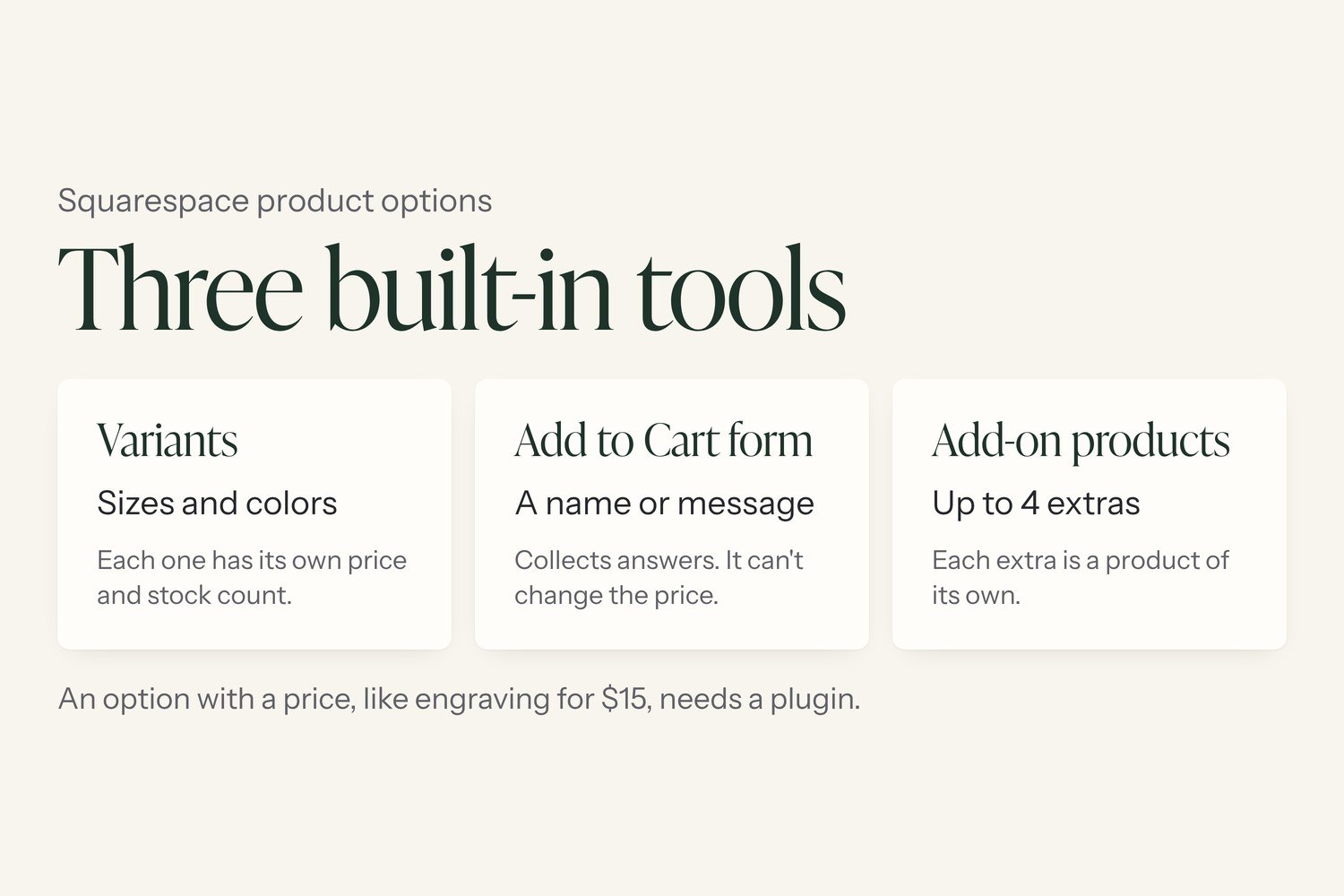
Here's my cheat sheet:
Sizes and colors you stock: Variants.
A name or message at no extra charge: Add to Cart Form.
Up to four extras that are products themselves: Add-on products.
An option that changes the price, shows right on the page, or is priced by the letter: none of the above.
That last one is the wall. A checkbox that adds $15. A text box that charges $0.50 a letter. A font choice that only shows up after someone checks "Add engraving." Squarespace can't do those on its own.
What I Use Now: Options With a Price
After sending one too many clients to complicated workarounds, I built a plugin for it. It's called OptionKit, and it adds product options with prices to Squarespace 7.1 stores.
Here's what it lets you add to a product page:
A checkbox with a price ("Add laser engraving, +$15")
A text field, free, a set price, or priced per letter
Dropdowns, buttons, or color swatches, each choice with its own price
A quantity ("Extra candles, $0.75 each")
A file upload for a photo or a logo
Options that only show when they apply, like a font choice that appears after engraving is checked
The part I like most: customers still pay in your normal Squarespace cart and checkout. Your discount codes, taxes, shipping, and order emails all work the way they already do. And what the customer typed shows up on the order, right next to the item it belongs to.
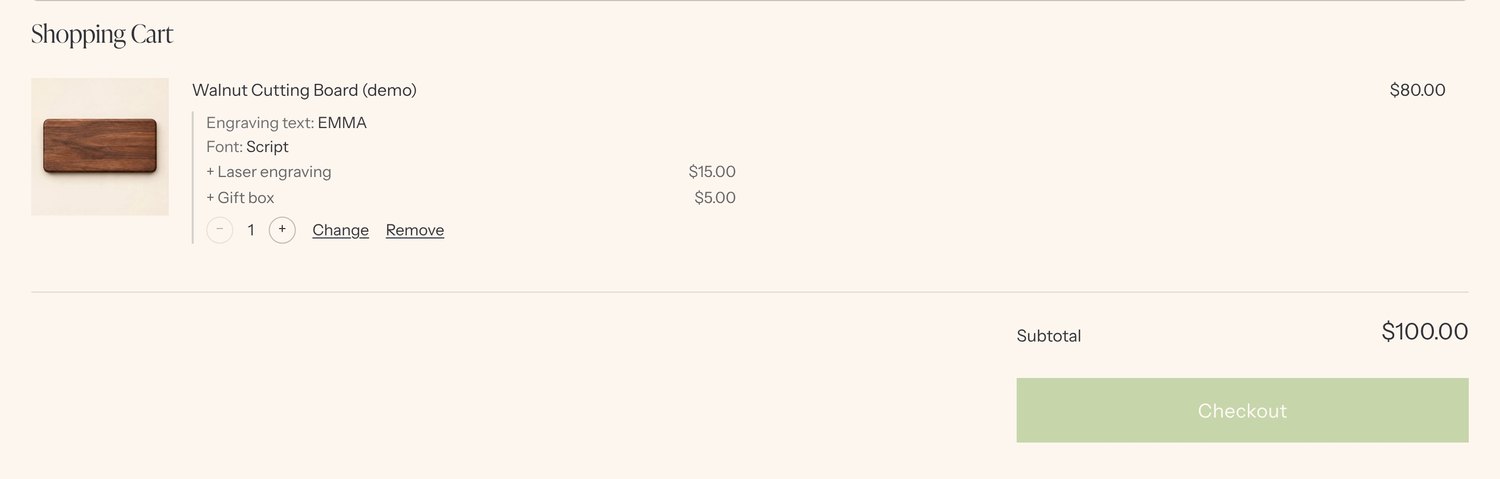
There's no code to write. You build your options in a builder with a preview next to it, paste one line into Code Injection, and click Publish. It takes about half an hour.
You can try the engraving demo here and see it for yourself. Check the box, type a name, and watch the price follow along.
What it costs: It's free to build and test on your squarespace.com address for as long as you like. On your own domain, the first 14 days are free with no card, then it's $12 a month or $120 a year per store. One $15 engraving covers the month.
A few honest limits:
It works on Squarespace 7.1, not 7.0.
You need a plan with Code Injection (Core, Plus, or Advanced, or an older Business or Commerce plan).
It doesn't show a live preview of the engraving on your product photo yet. That's coming.
If you want the full, step-by-step version of everything above, the JuiceKit site has a detailed guide: How to add product options in Squarespace.
Frequently asked questions
Can a Squarespace form field add to the price?
No. Form fields only collect information. To charge for a fixed extra, use an add-on product. For prices tied to options and text, you need a plugin.
How many variants can a Squarespace product have?
Up to six options and 250 variants per product, on every plan.
Do I need to move to Shopify for product options?
Not just for options. I wrote a whole post about that: Squarespace vs Shopify for Personalized Products.
Can I charge by the letter for engraving?
Not with Squarespace alone. With OptionKit, yes, and you can make the first few letters free. Here's how per-letter pricing works.
Final Thoughts
If your options are free, Squarespace's own tools are probably enough. Use them! They're built in and they work.
But the moment an option needs a price, you'll hit the wall I described. You don't have to rebuild your store somewhere else to get past it.
Try OptionKit free on your own store. And if you'd rather have someone set it up for you, book a free consultation and I'll take it off your to-do list.