

A photo for a cake topper. A logo to engrave. Artwork to print on a mug.
If you sell anything personalized, at some point you need a file from your customer. And if you've tried to set that up on Squarespace, you've probably ended up confused.
Here's why: Squarespace CAN take file uploads now. Just not where you want it to.
Let me explain, and then I'll show you the three ways around it.
Full disclosure: I built the plugin in option 3, OptionKit. Options 1 and 2 are completely free, and for some shops they're all you need.
Why Your Product Page Can't Take a File
Squarespace has two kinds of forms, and they don't work the same way.
Form blocks are the forms you add to a page, like a contact form. These have a File Upload field. Customers can send up to 5 files, 10 MB each, and the files reach you by email.
Add to Cart forms are the little forms that pop up when a customer clicks Add To Cart. These can't take a file. Neither can the checkout.
So Squarespace can take a file on a page, but not together with a product someone is buying. The file and the order never meet.
Option 1: Ask for the File After the Order
The simplest fix. Write on your product page: "After you order, we'll email you to collect your photo." Then email each customer and wait.
Cost: Free.
Pros: Nothing to set up.
Cons: It's work on every single order. Some customers never reply. And you only find out the photo is blurry after you've chased it down.
Best for: A few custom orders a month.
Option 2: Add a Form Block With a File Upload
Put a regular form on the product page (or on a page you link to) with a File Upload field.
Here's how:
Edit the page and add a Form Block.
Add a File Upload field and choose the file types you accept.
Add Name and Email fields, with a note like "Use the same email as your order."
Cost: Free. It's built into Squarespace.
Pros: Customers can send the file themselves.
Cons: It's a separate step, so customers can skip it. The file lands in your email, not on the order, so you match them up by hand. And you can't make it required before checkout.
Best for: Files that don't belong to one purchase, like a quote request.
Option 3: Put the Upload Right on the Product
This is the one my clients actually wanted: an upload box on the product page itself, next to the other options.
OptionKit does this. The customer drops in a photo (or taps Choose a file on their phone, which opens their camera roll). It uploads while they finish choosing, and Add To Cart waits until it's done.
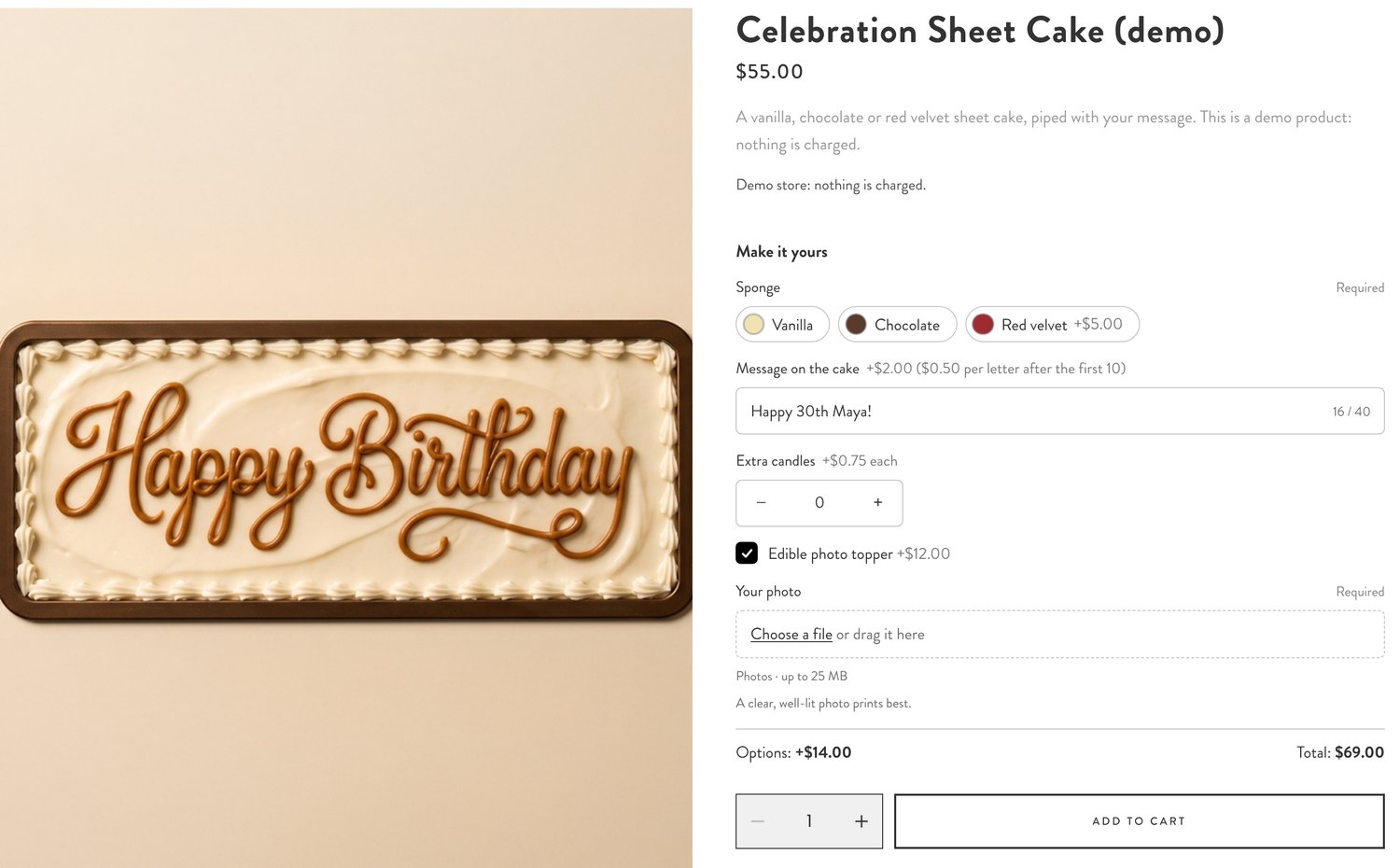
Then the order in Squarespace shows a link to the file, right on the item it belongs to. No matching. No chasing.
A few things I like about it:
You can make it required. No photo, no order.
You can charge for it. A set price, or a price per file.
It can appear only when needed. For example, the upload box shows up only when "Photo topper" is checked.
You choose the file types: photos, PDFs, design files, or documents. Up to 10 files, 25 MB each.
Cost: Free on your squarespace.com address. On your own domain it's free for 14 days, then $12 a month or $120 a year per store.
One thing to know: Files are kept for 90 days and then deleted, so download the ones you want to keep.
Want to see it? Try the photo cake on the demo store and upload any picture.
Which One Should You Pick?
My honest take:
A handful of custom orders a month? Ask after the order. Don't overthink it.
Collecting files for quotes? Use a form block.
A photo or logo that has to come with every order? Put the upload on the product.
Frequently asked questions
Can customers upload from their phone?
With a form block, yes. With OptionKit, yes. It opens their photo library or camera, and iPhone photos work too.
Where do the files go?
Form block files come to your email. OptionKit files are linked on the order in Squarespace, and they're also listed in the OptionKit builder where you can download or delete them.
Can customers see their photo on the product before they order?
Not yet. They see a small picture of their file in the upload box. A live preview on the product photo is coming.
Final Thoughts
Squarespace has come a long way with file uploads. If a form block does the job for you, use it! It's free and it's already there.
But if you're tired of matching emails to orders, an upload on the product page saves you that step on every single sale.
The JuiceKit site has the full step-by-step: Add a file upload to a Squarespace product. Or try OptionKit free and add an upload box to your own store.
Need a hand setting it up? Book a free consultation and let's chat.