

Does this sound like you?
You're setting up a product. You add sizes. Then colors. Then a font choice for the engraving. Then "gift box: yes or no." You hit save and...
Squarespace says no.
Welcome to the 250 variant limit. Almost every shop owner I work with who sells something customizable runs into it eventually.
The short answer to "how do I add more than 250 variants in Squarespace?" is: you can't. It's the same on every plan, and there's no setting to raise it.
But here's the good news. In almost every case, you don't actually need more variants. You need fewer. Let me show you what I mean.
Full disclosure: I mention OptionKit in this post, which is a plugin I built. The first half of this post works without it.
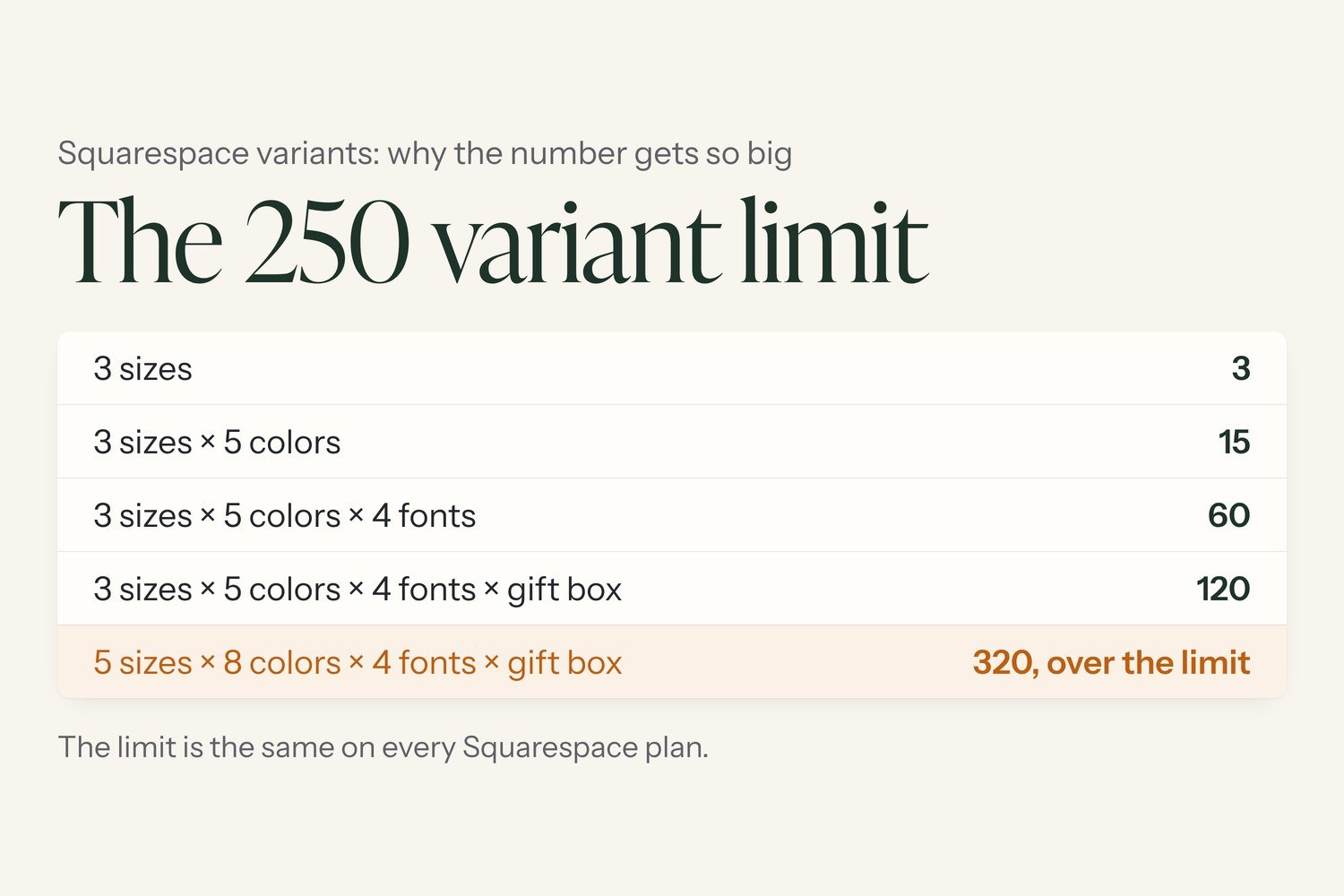
Why the Number Gets So Big, So Fast
A variant is one combination of all your options. Squarespace multiplies them together:
Every one of those is a row you fill in by hand, with its own price and its own stock count.
And that stock count is the sneaky part. Add "Engraving: yes / no" as an option, and Squarespace now thinks you have two piles of cutting boards: engraved and plain. You don't. You have one pile, and you engrave the ones people order.
What SHOULD Be a Variant
Here's the rule I use with clients:
If it's a different item on your shelf, it's a variant.
Size. Color. Material. Anything you count in your stockroom. Variants are built exactly for this, and they're great at it.
What Should NOT Be a Variant
Anything done to order. Engraving, a monogram, gift wrap. There's no separate stock of "engraved" boards.
Anything typed. A name, a date, a message. Variants can't take text at all.
Yes/no extras. A gift box, a rush fee. A single yes/no option doubles your variant count for the whole product.
Choices that only matter sometimes. A font only matters when engraving is chosen.
How to Offer Everything Else
Once you've trimmed your variants down to the things you actually stock, you have a few ways to offer the rest.
1. Use an Add to Cart Form for Free Choices
Squarespace can show a short form when the customer clicks Add To Cart. It can ask for a name, a message, or a font, and it doesn't count toward your variants.
The catch: it can't change the price. So it only works for choices that are free.
2. Use Add-On Products for Up to Four Extras
A gift box or a vase can be its own product, shown under the Add To Cart button. You can show up to four per product.
The catch: customers can also buy them on their own, and they aren't tied to the main product in the cart.
3. Split the Product
You can make one product per color, for example. It works, but customers now pick from a list of products instead of a dropdown, and you maintain each one separately. I only do this as a last resort.
4. Use a Plugin for Options With a Price
This is where OptionKit comes in. It puts the made-to-order choices on the product page as checkboxes, text fields, buttons, and swatches. Each one can have a price. And none of them add variants.
Take that 320 example from the table above:
Sizes and colors stay as variants. That's 40, because you stock those.
Font, engraving, and gift box become options. That's zero extra variants.
Your product keeps one stock count per variant, exactly the way it should. And the customer still checks out in your normal Squarespace cart.
It's free to build and test on your squarespace.com address, then $12 a month or $120 a year per store on your own domain after a 14-day free trial. See it on the demo store.
Frequently asked questions
What exactly is the limit?
Up to six options and 250 variants per product. It's the same whether you add them in the editor or import them from a spreadsheet.
Can I pay to raise it?
No. It's the same on every Squarespace plan.
Do options from OptionKit affect my stock?
No. Your product keeps its own stock, by variant if it has them.
Can an OptionKit option depend on a variant, like size?
Not directly. Its rules look at other OptionKit options, not at Squarespace variants. If a choice needs to depend on size, you'd make the size an OptionKit option too.
Final Thoughts
When you hit the 250 limit, it feels like Squarespace is the problem. Most of the time, the real problem is that variants are being asked to do a job they weren't made for.
Keep variants for what's on your shelf. Move everything else out. Your product editor will be a lot less scary, I promise.
For the full walkthrough, see JuiceKit's guide: How to add more than 250 variants in Squarespace. Or try OptionKit free.
Want me to untangle your products for you? Book a free consultation and let's sort it out.