

Gift cards are one of the easiest things to add to a Squarespace store. They're included on every plan, and there isn't much to set up.
Here's how Squarespace gift cards work, how to set one up, and a few limits worth knowing before you start selling them.
How do gift cards work on Squarespace?
A gift card is its own kind of product. When someone buys one, Squarespace emails a code to the person they're buying it for, or to the buyer if they'd rather print it or pass it along themselves.
The person with the code types it in at checkout, and the value comes off their order total. That includes tax and shipping. If the order costs more than the gift card, they pay the rest with a card. If it costs less, the balance stays on the gift card for next time.
Squarespace gift cards never expire.
What you need before you start
A plan that can sell. All four current plans (Basic, Core, Plus and Advanced) include gift cards.
A way to get paid. Connect Squarespace Payments, Stripe or PayPal.
A store page. That's where the gift card will show up.
Sales tax set up, if you collect it. Buying a gift card isn't taxed, but the orders people place with one are. Here's how to set up sales tax on Squarespace.
The right currency. Check your store's currency first. Once you sell a gift card, even in a test order, you can't change it.
How to set up gift cards on Squarespace
Add a new product to your store and select Gift Card.
Give it a name and a short description. The name only shows on the product page, not in the gift card email.
Add an image. A simple graphic with your logo works well.
Set the amounts. Squarespace starts you with four. Click the Amount field to change them, or click Add for more.
Hover over Save and click Publish.
If you're not ready to sell it yet, click Save instead and it stays hidden. You can also schedule it to go live on a certain day.
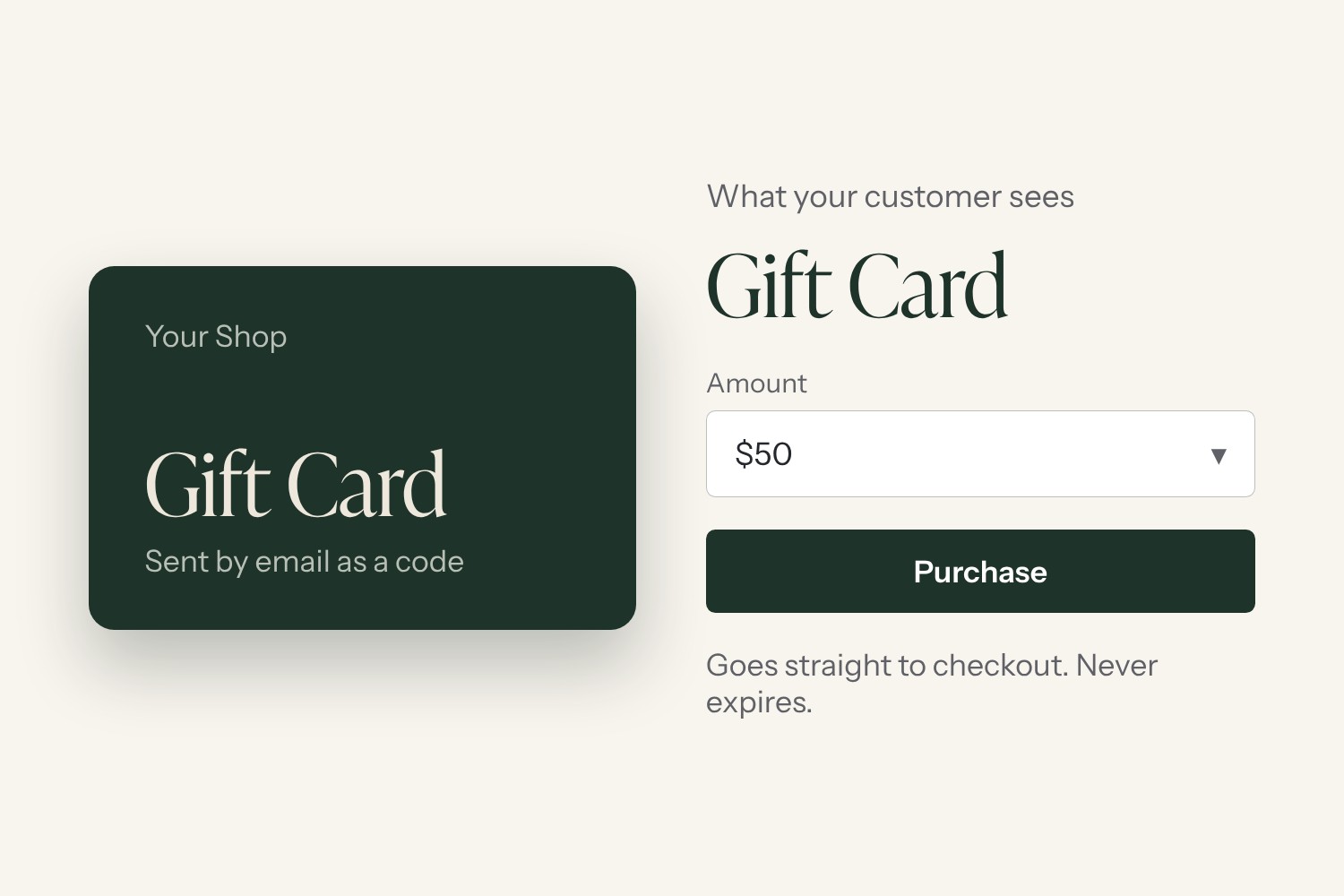
What your customer sees
Your customer picks an amount from a dropdown and clicks Purchase. That takes them straight to checkout, where they choose one of two delivery options:
Email to Recipient. They enter the recipient's name and email, a short message (up to 80 characters) and their own name. The gift card goes straight to the recipient.
Email to You. The gift card comes to the buyer, who can print it or forward it later.
The email goes out as soon as the purchase goes through. If a customer wants it to arrive on a birthday or a holiday, they should pick Email to You and forward it that day.
Squarespace gift card limits to know about
They're digital only. Squarespace doesn't make or ship plastic gift cards. Customers can print the email.
Customers can't type in their own amount. They choose from the amounts you set, so give them a good range.
A gift card is bought on its own. It can't go in the cart with other products, and it's one gift card per order.
Discounts don't apply to buying one. A sale price or discount code won't take money off a gift card. They do still work on an order paid for with a gift card.
They don't work on subscriptions. Gift cards can pay for physical products, downloads and services, but not subscription products. They also can't be used for Acuity appointments.
Only unused gift cards can be refunded. Once part of the balance has been spent, you can't refund it.
In person takes an extra step. You can't take a gift card through Squarespace's point of sale, but you can redeem one in the Squarespace app on an iPhone.
How to check a Squarespace gift card balance
Your customer can see the balance in the email they got, and again any time they enter the code at checkout.
To see every gift card you've sold, open Products & Services, click Orders, then View gift cards. You'll see who each one went to, what it started at and what's left. If a customer loses their code, you can resend the gift card email from the order.
What about gift wrap and gift messages?
Gift cards are for the shopper who doesn't know what to buy. A lot of holiday orders are the other kind: someone buying one of your products as a gift.
For those orders, Squarespace lets you add a gift message box at checkout with a custom checkout form. What it can't do on its own is charge for an extra, like $5 for gift wrap.
That's one of the reasons I built OptionKit, a plugin that adds paid options to Squarespace product pages. A customer checks a box for gift wrap, the price is added to their total, and it all goes through your normal checkout. It's installed with Code Injection, so it needs the Core plan or higher. Here's how to add a gift wrap option to a Squarespace product.
Frequently asked questions
Do Squarespace gift cards expire?
No. Squarespace gift cards never expire, and you can't set an expiration date.
Can I sell physical gift cards on Squarespace?
No. Squarespace gift cards are digital codes sent by email. Customers can print the email, but Squarespace doesn't make or ship plastic cards.
Which Squarespace plans have gift cards?
All four current plans do: Basic, Core, Plus and Advanced.
Can a customer use a gift card and a credit card on the same order?
Yes. If the order costs more than the gift card, they pay the rest with a card. They can also use more than one gift card on the same order.
Is sales tax charged on a gift card?
Not when someone buys it. Tax is charged later, on the order the gift card is used for.
Conclusion
Gift cards on Squarespace are simple to set up, and that's most of the appeal. Check your currency, add the product, pick a few amounts and publish it. If you want them selling for the holidays, add a link to the gift card in your menu or on your homepage so people can find it.