

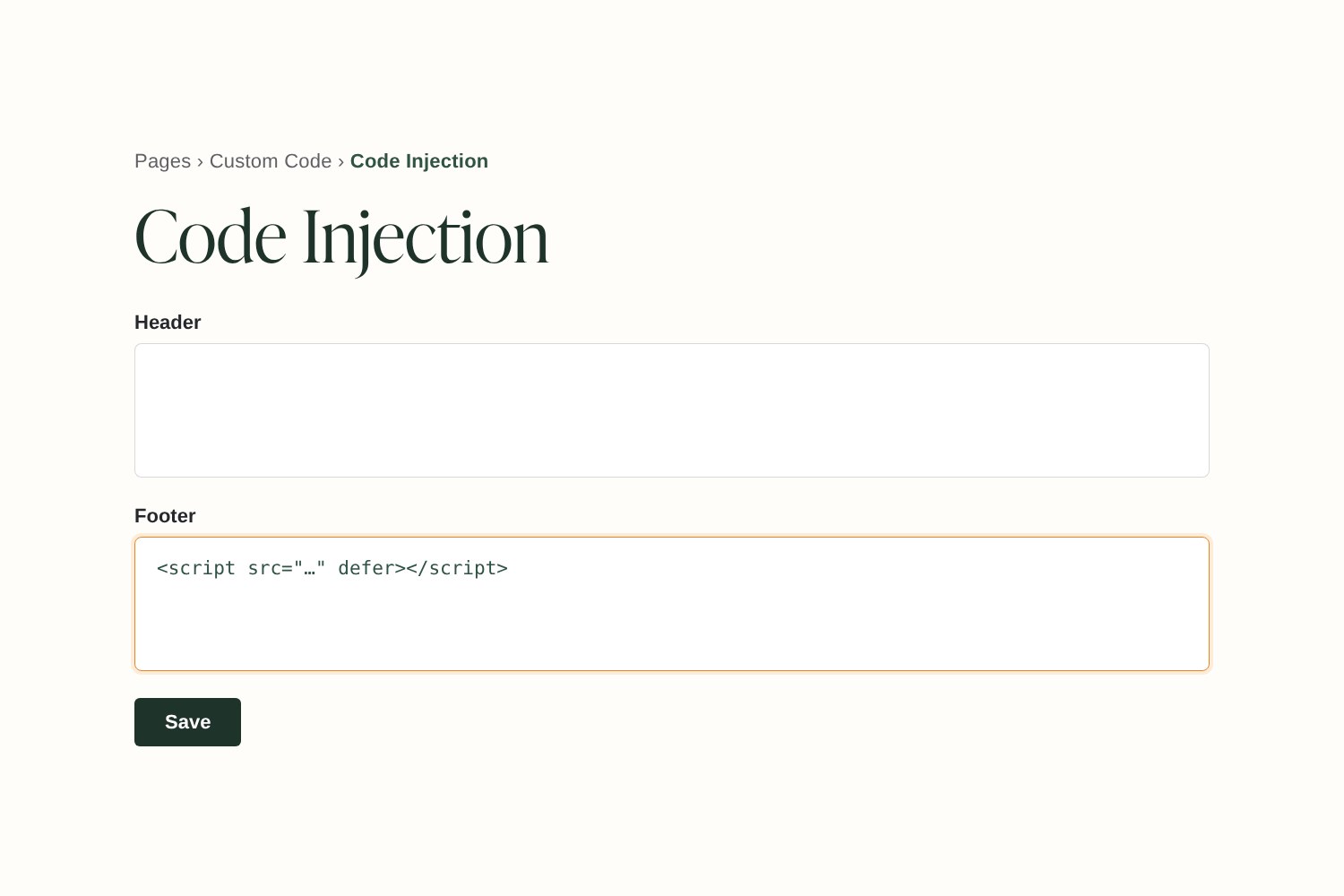
If you've ever followed a tutorial that says "just paste this into Code Injection," then spent ten minutes hunting for it, you're not alone. Squarespace has moved it more than once, and half the guides online still point to the old spot.
Here's where it is today, which plans have it, and how to use it without breaking your site.
What is Code Injection?
Code Injection is a set of boxes where you can paste a small piece of code that runs on your site. It's how you add things Squarespace doesn't do on its own, like a chat bubble, Google Tag Manager, a Pinterest tag, or a plugin like OptionKit.
You don't need to know how to code to use it. Most of the time, you're copying a line from the tool you're adding and pasting it into one box.
Where to find it in Squarespace 7.1
Open your site and select Pages.
Scroll to the bottom of the Pages panel.
Select Custom Code, then Code Injection.
You'll see a Header box and a Footer box, plus a few others for special pages. Paste your code, then select Save.
If it isn't there, don't panic. Squarespace moves things around every so often. Search "Code Injection" in Squarespace's own help center and it'll show you where it is now.
Which Squarespace plans have Code Injection?
This is the part that trips people up. Code Injection is only on these plans:
Core, Plus or Advanced
The older Business, Commerce Basic or Commerce Advanced plans, if you're grandfathered in
The Basic plan doesn't have it, and neither did the old Personal plan. If you're on Basic and you need it, you'll have to upgrade. I break down what each plan costs in my Squarespace pricing post.
Header or Footer: which box do I use?
Use whichever one the tool's instructions tell you to. If they don't say, here's my rule of thumb:
Header is for tracking tags, like Google Tag Manager or a Pinterest tag. They want to load first.
Footer is for anything that changes how your pages look or behave. It loads after the page, so it doesn't slow down what your visitors see first.
Can I add code to just one page?
Yes. Every page has its own Code Injection box. Open the page's settings, select Advanced, and you'll find it there.
One catch: code on one page only runs on that page. If a tool needs to work across your whole store, like on the cart page too, it has to go in the site-wide Footer instead.
Here's a mix-up I see a lot: someone adds a chat widget to their Contact page's Code Injection, then wonders why it doesn't show up anywhere else. It's working fine. It's just only on that one page.
How to keep Code Injection from breaking your site
Only paste code from people you trust. Code in this box runs on every page, so a bad snippet can do real damage.
Keep a copy of what's in there. Before you change anything, copy everything in the box into a note on your computer. If something goes wrong, you can paste it right back.
Add one thing at a time. Then check your site. If something looks off, you'll know exactly which piece caused it.
Clean up old code. If you stopped using a tool, take its code out. Leftover snippets slow your site down and can clash with new ones.
Why I care about this one
I built OptionKit, a plugin that adds personalized product options to Squarespace stores, like engraving, gift wrap and per-letter pricing. It's installed with one line in the Code Injection Footer, so I've walked a lot of store owners through this exact screen.
For years, clients kept asking me, "Can customers add engraving for $15?" and I kept having to tell them Squarespace couldn't really do that. So I built the thing I kept wishing existed. You can read the whole story in I Built a Squarespace Plugin: Meet OptionKit.
If you're setting up OptionKit, here's the step-by-step for adding it with Code Injection.
Conclusion
Code Injection sounds technical, but it's really just a box you paste into. Find it under Pages › Custom Code › Code Injection, make sure your plan has it, and keep a copy of what's in there before you change anything. That's 90% of it.