

If your product photos look blurry, load slowly or get cropped in odd places, it usually comes down to the files you uploaded. Squarespace is forgiving about image size, but a few numbers make a real difference.
Here's the short version, then the reasons behind it.
What is the best image size for Squarespace?
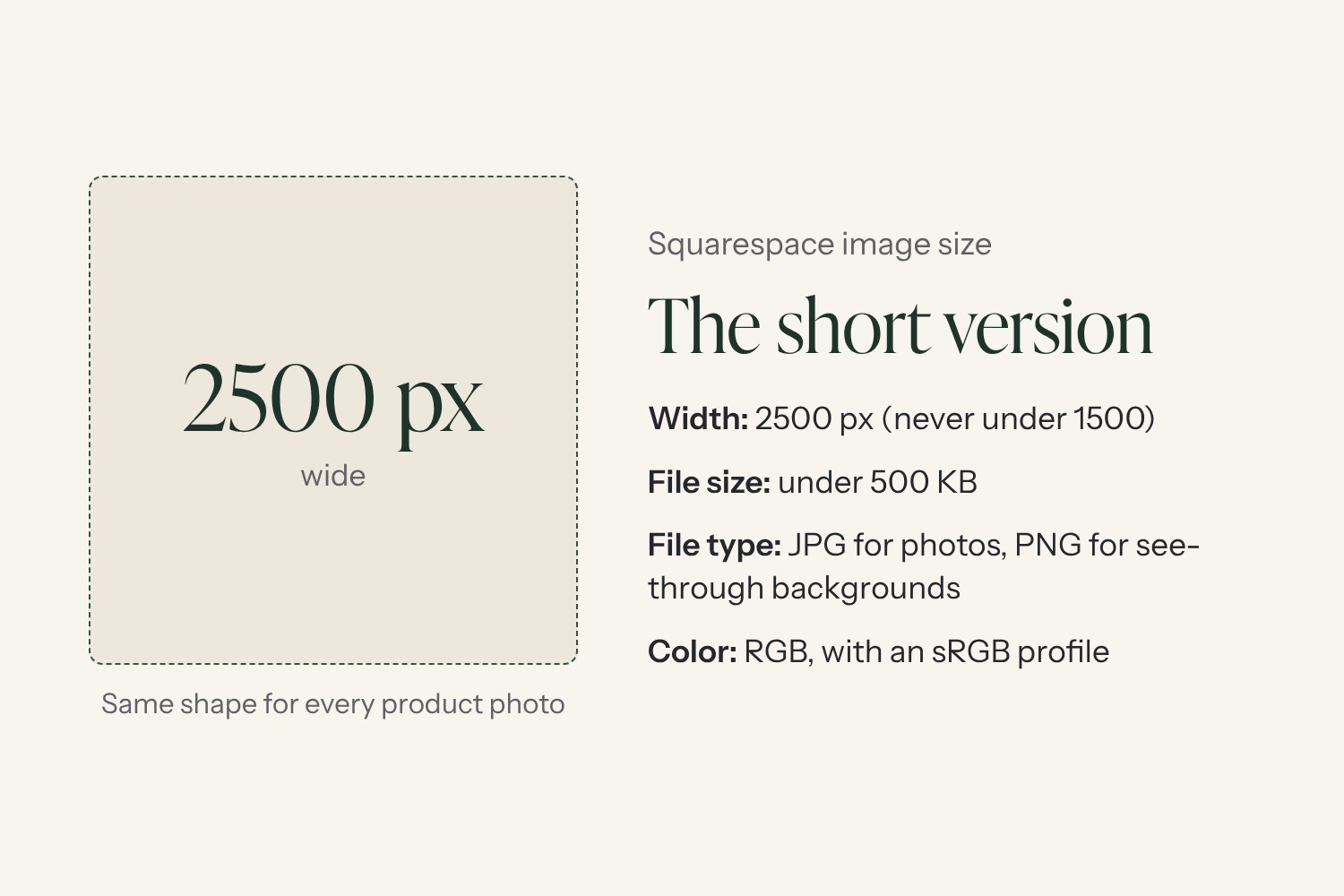
Width: 2500 pixels. Don't go under 1500.
File size: 500 KB or less if you can. The limit is 20 MB.
File type: JPG for photos. PNG for images with a see-through background or text in them.
Color: RGB, with an sRGB profile.
Shape: the same for every product photo.
These are Squarespace's own recommendations, and they apply to product photos and to most other images on your site.
Why 2500 pixels wide?
When you upload an image, Squarespace makes up to seven copies of it at different widths, from 100 pixels up to 2500. Then it shows each visitor the copy that fits their screen. A phone gets a small one, and a big monitor gets a big one.
If you upload at 2500 pixels wide, Squarespace has everything it needs to make all seven. If your image is narrower than 1500 pixels, the bigger copies don't exist, and the photo can look blurry on a computer screen even though it looks fine on your phone.
You don't need to go wider than 2500. It won't look any sharper, and the upload takes longer.
What about DPI?
You can ignore it. DPI only matters for printing. On a screen, the pixel width is what counts, so a 72 DPI image and a 300 DPI image with the same pixel width look the same on your site.
What shape should product images be?
Squarespace doesn't require a certain shape. What matters is that all your product photos are the same shape, so your store page lines up in a tidy grid.
Square (1:1) is the safe choice, and it's what I'd pick for most stores. A tall 2:3 or 4:5 shape works well for clothing and anything else that's taller than it is wide.
Pick one, and crop your photos to it before you upload. If you let Squarespace do the cropping, it can cut off the top or the sides of a product.
To set the shape your store page uses in Squarespace 7.1:
Edit your store page and hover over the section with your products.
Click the pencil icon.
Choose the aspect ratio. This is also where you set the spacing and the number of columns.
The setting applies to every product on that page. So if your photos are 4:5 and the page is set to square, they'll all be cropped.
How to keep image files small
Big image files are a common reason a store page loads slowly. Squarespace recommends keeping each image at 500 KB or less, and keeping a whole page under 5 MB.
Resize first. A photo straight off a phone or camera is often 4000 pixels wide or more. Bring it down to 2500.
Save photos as JPG. A PNG of the same photo can be several times bigger.
Turn the quality down a little. Around 80% is usually plenty, and most people can't see the difference.
Squarespace also converts your images to a faster format called WebP when it shows them to visitors. You don't have to do anything for that.
How many images can a product have?
Up to 100, but you don't want anywhere near that many. Four to six good photos is plenty for most products.
The first image in the product editor is the featured image by default. That's the one that shows on your store page, so make it your clearest shot of the product.
If a product comes in different colors, you can add an image to each variant. When a customer picks "Blue," they see the blue one.
File names and alt text
File names: use letters, numbers and hyphens, like brass-compass-open.jpg. Accents and symbols like & or % can cause upload problems.
Alt text: a short description of what's in the photo. It helps people who use screen readers, and it helps your photos show up in Google Images. Each product image can have up to 200 characters.
To add alt text, open the product editor and click Images. Click ••• on the image, then Edit Metadata.
What about banner images?
Banners at the top of a page are a different case. They don't have a set shape, because they stretch to fit whatever screen they're on. Use the same 2500 pixel width, and keep the important part of the photo near the middle, since the edges can get cropped on smaller screens.
When photos aren't enough
Photos do a lot of the selling on a product page, and reviews do much of the rest. If you haven't turned those on, here's how to add product reviews to Squarespace.
Good photos show what the product looks like. They can't show a customer what they can change about it, like the thread color on a monogram or the font for an engraving. For that you need options on the product page. Here's my guide to adding product options in Squarespace, starting with what the built-in tools can do.
Frequently asked questions
What is the best image size for Squarespace?
2500 pixels wide, and 500 KB or less if you can. Images narrower than 1500 pixels can look blurry on a computer screen.
What size should Squarespace product images be?
2500 pixels wide, with every product photo the same shape. Square (2500 by 2500) is the safe choice. Squarespace doesn't require exact dimensions.
What is the maximum image size on Squarespace?
20 MB per image. For a fast site, Squarespace recommends 500 KB or less.
Does DPI matter for Squarespace images?
No. DPI only affects printing. On a website, the pixel width is what matters.
Should I use JPG or PNG on Squarespace?
JPG for photos, because the files are much smaller. PNG for logos, images with a see-through background and images with text in them.
Conclusion
You don't need exact dimensions for Squarespace. You need photos that are 2500 pixels wide, small in file size, and all the same shape. Get those three right and most blurry, slow or badly cropped images fix themselves.